How To Open .AMV File Format With FileViewPro
페이지 정보

본문
An AMV file caters to devices with limited capability where the workflow converts standard videos to .AMV (and sometimes .AMT) through a device-provided converter, producing very small, low-bitrate outputs that may look blocky yet decode easily on tiny screens and slow processors.
To open an AMV file, the most convenient first step is testing it in VLC by dragging it in—success means you’re done, and partial playback (audio-only or video-only) often means it’s still a proper AMV that just needs conversion, typically to MP4 via FFmpeg when supported; if both VLC and FFmpeg refuse it because the AMV is nonstandard, then using a converter designed for that device family is the most dependable method, and if no tool opens it, checking file size, origin, and corruption signs can help, keeping in mind that renaming the extension to .MP4 won’t fix incompatible encoding.
To open an AMV file, you should begin by loading it into a modern general-use media player, because many AMV formats still work today; on Windows, VLC is the quickest option—just drag the .amv in or choose Media → Open File—and if playback is normal, you’re done, but if you get partial output like a black screen with audio, the AMV is usually valid but not fully supported, so converting it to MP4 is the practical path, using FFmpeg when it can read the file’s streams, though FFmpeg errors about unrecognized data or missing streams often indicate a more unusual AMV format or a damaged file.
If that happens, the most dependable approach is turning to an "AMV Converter" crafted for the original hardware or chipset, as it’s designed for that AMV variation, and if everything still fails you can confirm it’s likely a real video by checking megabyte-level size and its origin from an old MP3/MP4 player, keep corruption in mind, and remember that simply renaming extensions won’t fix unsupported encoding.
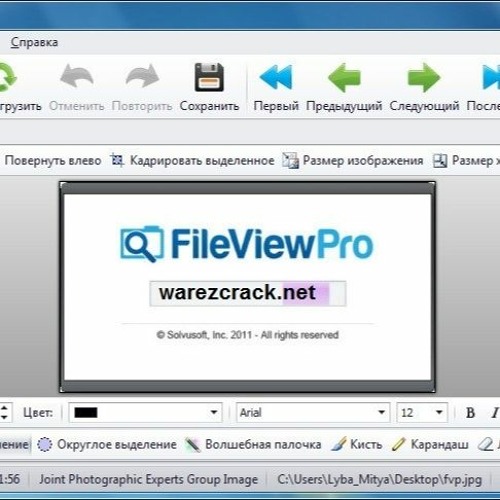 If you have any questions pertaining to where and how you can use AMV file unknown format, you could call us at our web-site. To figure out if your AMV is the video type, rely on its origin, file size, and how it responds when opened: AMVs sourced from older MP3/MP4 devices or classic media folders like Videos, Media, DCIM, or MOVIE/VIDEO are usually actual video clips, and legitimate AMV videos tend to weigh in at a few to many MB, while tiny kilobyte-sized files are often indicators of data snippets, playlist files, or corrupted/incomplete copies.
You can also run a quick sanity check by opening the file in a text editor like Notepad—real video files show nonsensical characters almost immediately, while non-video files may display readable text or patterns; it’s not perfect but it’s fast, and the most direct test is playback: if VLC plays it and you can scrub around, it’s definitely video, while partial playback or refusal may mean it’s a quirky AMV variant needing conversion or the original converter tool, and consistent failure across players usually means corruption or that it isn’t a true AMV video.
To open an AMV file, the most convenient first step is testing it in VLC by dragging it in—success means you’re done, and partial playback (audio-only or video-only) often means it’s still a proper AMV that just needs conversion, typically to MP4 via FFmpeg when supported; if both VLC and FFmpeg refuse it because the AMV is nonstandard, then using a converter designed for that device family is the most dependable method, and if no tool opens it, checking file size, origin, and corruption signs can help, keeping in mind that renaming the extension to .MP4 won’t fix incompatible encoding.
To open an AMV file, you should begin by loading it into a modern general-use media player, because many AMV formats still work today; on Windows, VLC is the quickest option—just drag the .amv in or choose Media → Open File—and if playback is normal, you’re done, but if you get partial output like a black screen with audio, the AMV is usually valid but not fully supported, so converting it to MP4 is the practical path, using FFmpeg when it can read the file’s streams, though FFmpeg errors about unrecognized data or missing streams often indicate a more unusual AMV format or a damaged file.
If that happens, the most dependable approach is turning to an "AMV Converter" crafted for the original hardware or chipset, as it’s designed for that AMV variation, and if everything still fails you can confirm it’s likely a real video by checking megabyte-level size and its origin from an old MP3/MP4 player, keep corruption in mind, and remember that simply renaming extensions won’t fix unsupported encoding.
If you have any questions pertaining to where and how you can use AMV file unknown format, you could call us at our web-site. To figure out if your AMV is the video type, rely on its origin, file size, and how it responds when opened: AMVs sourced from older MP3/MP4 devices or classic media folders like Videos, Media, DCIM, or MOVIE/VIDEO are usually actual video clips, and legitimate AMV videos tend to weigh in at a few to many MB, while tiny kilobyte-sized files are often indicators of data snippets, playlist files, or corrupted/incomplete copies.You can also run a quick sanity check by opening the file in a text editor like Notepad—real video files show nonsensical characters almost immediately, while non-video files may display readable text or patterns; it’s not perfect but it’s fast, and the most direct test is playback: if VLC plays it and you can scrub around, it’s definitely video, while partial playback or refusal may mean it’s a quirky AMV variant needing conversion or the original converter tool, and consistent failure across players usually means corruption or that it isn’t a true AMV video.
- 이전글비아그라 구입합니다 수하그라여자, 26.02.11
- 다음글'Mallu massage' Search 26.02.11
댓글목록
등록된 댓글이 없습니다.